
Validating an Evidence Artifact
Introduction
Evidence validation is one of the last steps in the continuous compliance cycle. In order to keep an evidence status as “In Place”, points of contact which are assigned to an evidence submit artifacts that would confirm that all associated controls are active. An artifact is defined as any data such as documents, or resources from the platform (Meetings, Reports, etc) that represents the evidence information. Once evidence artifacts are submitted the evidence resource in the platform gets the status of “Pending Validation”. All evidences that are marked “Pending Validation” are ready to be reviewed by a security expert.
After the validation process is complete the evidence status will go to being in place again or expired depending if the evidence satisfies the requirements.
Step-by-Step Guide
Accessing the Validation UI
Navigate to the “Evidence” list (https://platform.rivialsecurity.com/#/continuous_compliance/evidence )
Find an evidence that is has a status of pending validation, you can filter by status to make it easier
View the details of the found evidence
Navigate to the “Artifacts” accordion, on top there should be a message regarding artifact that are ready for review, Press “Click Here”

When there is more than one artifact to validate a list of artifacts will be shown, view the details of any of these artifacts to begin. When only a single artifact is available the validation UI will be shown immediately
Navigating the Validation UI
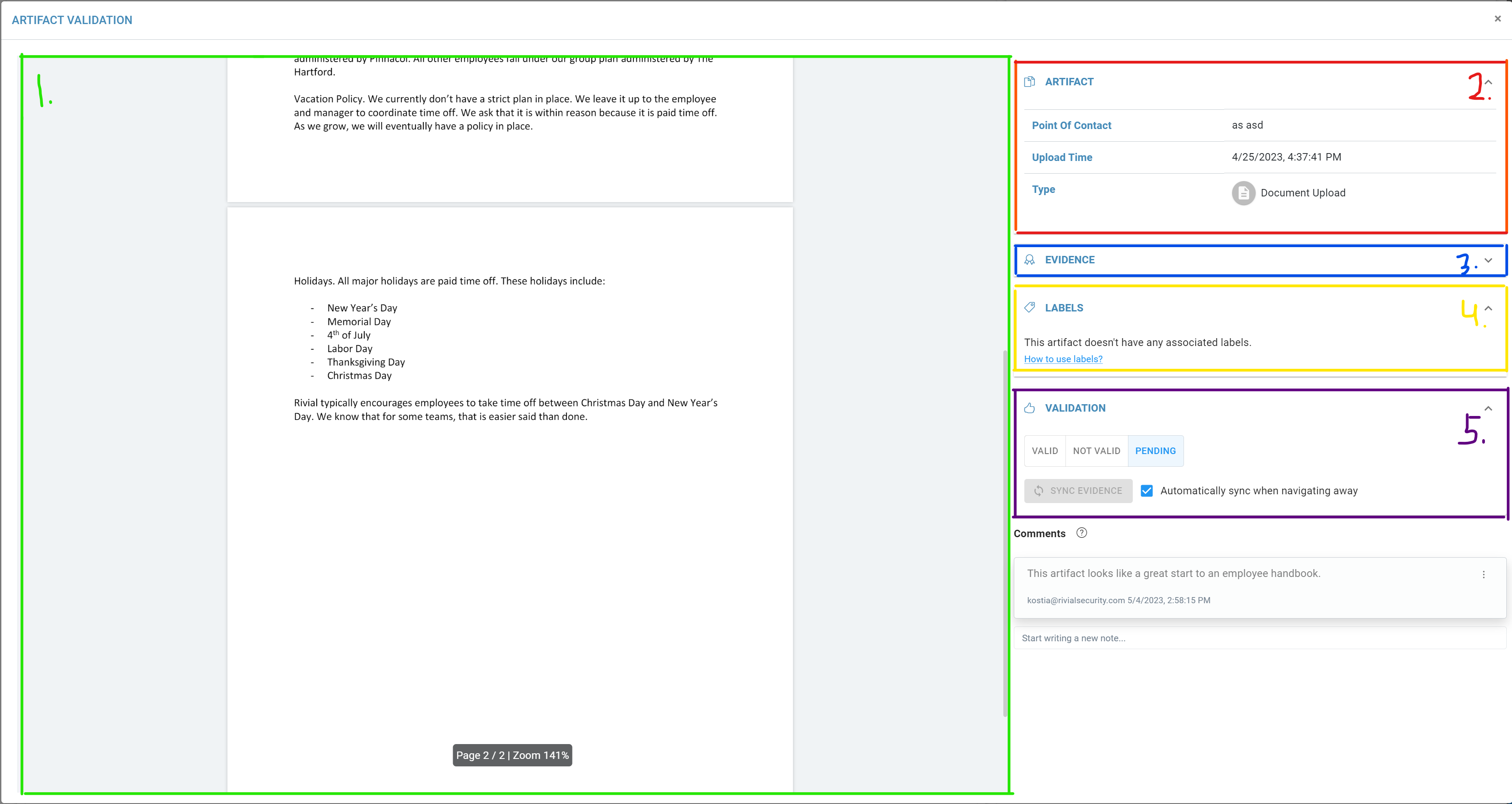
The left hand side of the validation UI show a preview of the artifact submitted by the points of contact attached to the evidence
The top of the validation panel on the right starts with general artifact info such as its type and when it was created
You may also find the evidence details information useful when reviewing the artifact to see if what the point of contact submitted fits the requirements
For certain artifact submissions the bookmarking and feature available allowing to select pieces of the document for collaboration and building out an organization library of labels
The last accordion is where the you review whether the artifact fits the evidence and makes it be in-place
Labeling Artifacts
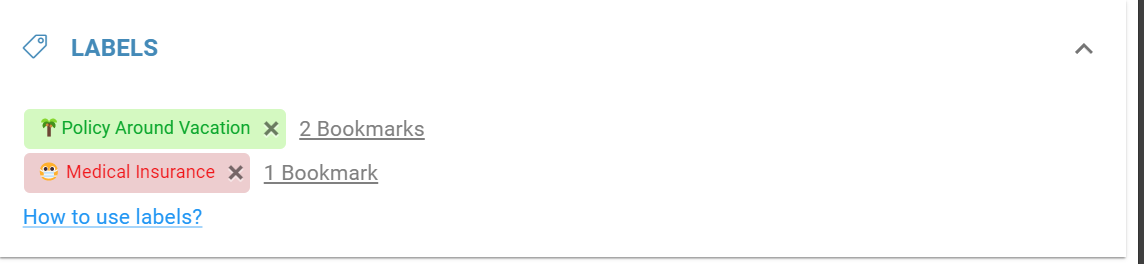
Labels are represent a group of bookmarks in the an artifact that relate to its validity. Bookmarks are sentences or phrases in the documents which can be highlighted for future reference.
To add a label or a bookmark select a piece of text in the preview section and follow the instructions in the popup that appears. To create the second label press the green plus in that same popup.
In the labels accordion of artifact validation UI you can press on the label to navigate quickly to a bookmark.
Next to the labels is a link to all bookmark text you can press on the link to open a modal with more info about each bookmark
Validating the Artifact
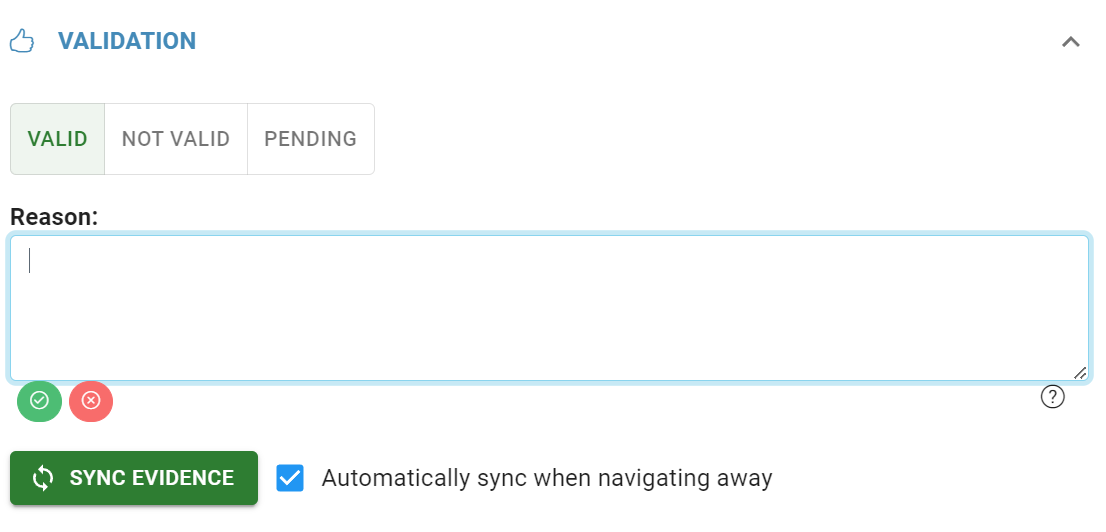
At the end of the review process, to finish validating an artifact and its evidence you can choose between valid, not-valid and pending status for an artifact. Pending is the default value for a new artifact.
For valid and not valid statuses the platform will automatically ask for a reason. Especially if an evidence artifact is invalid providing a reason will help other reviewers and the original point of contact who submitted an evidence why the
At the end you may choose to sync the evidence status with the artifact status, if this is the latest artifact on file for the evidence the sync will happen automatically (note the checkmark next to the sync button). Note syncing the evidence status may trigger another round of emails for evidence to be resubmitted.
Artifact Status to Evidence Status Mapping:
Valid → In Place
Not Valid → Expired (Not in Place)
Pending → Pending Review
Video Tutorial
Related Articles
- Assign Evidence Owners
- Link an Evidence to a Risk Sub-Control
- Export Grid Data
- Upload a Document as an Evidence Upload
- Upload a Screenshot as an Evidence Upload
- Generate a Policy for an Evidence Upload
- Schedule a Meeting for an Evidence Upload
- Duplication of Items
- Generate a Report for an Evidence Upload
- Enable/Disable Automatic Evidence Gathering
- Set up Continuous Compliance for an Organization
- Setting an Evidence Item's Frequency
- Evidence Activity
- Validating an Evidence Artifact
- Link Evidence and Controls
Last Updated: May 4th, 2023 |
Author(s): Kostia Makrasnov, Jacob Blazina, Cole Rowell |