
How To Create An Email Template
Introduction
Create an Email Template for an Automation; A user may fully create and customize an Email Template that is used to notify users of specific criteria.
Step-by-Step Guide
Navigate to the Organization Details module
Open the ‘Email Templates’ page
On the top of the grid, click on the ‘Create’ button
A new modal will appear, this modal is used to create an Email Template. This modal includes multiple fields that are used to customize the Email Template. These fields are as follows:
‘Name’
‘Recipients’
‘Reply-To’
‘Subject’
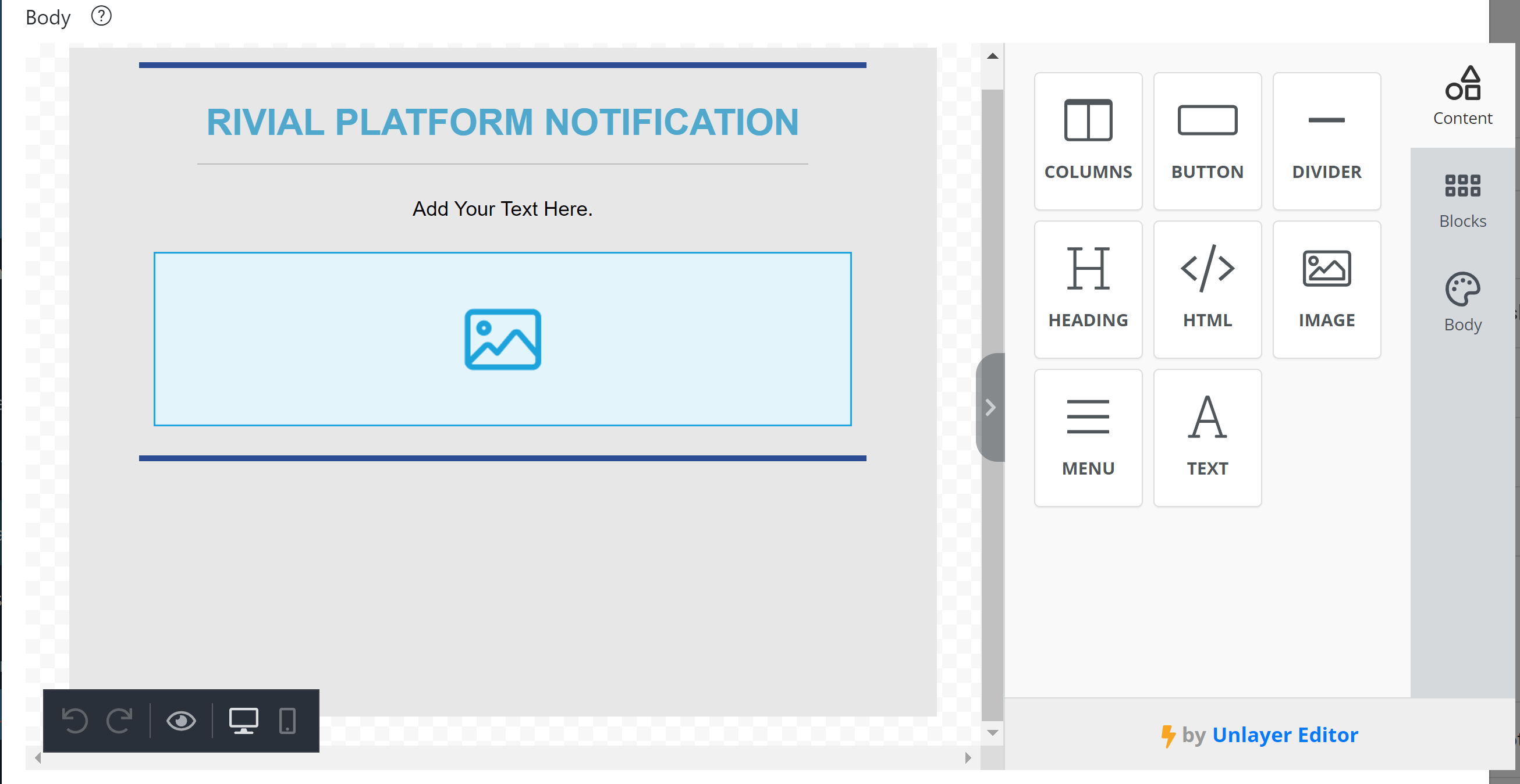
Body
5. Start off by naming the template, commonly used names for Email Templates briefly summarize the template.
6. Select recipient(s) for the email template, a user may select one or multiple recipients for template. The platform will list all of the users in that organization.
7. The user may also select a ‘Reply-To’ email address for the template. This is the email address that will be used if the recipient(s) wish to reply to the email. If an email address is not entered, the email replies will go to “support@rivialsecurity.com”.
8. Now, the user may fill in the email subject.
9. Once the other fields have been filled out, the user may move on to building the email template in the ‘Body’ field. One may use text boxes, buttons, pictures, etc. when building the template.
10. Once the user has finished building the template, click the ‘Submit' button.