
Example - Generate A Monthly Program Report
Introduction
Create a scheduled Automation that will generate a Program report every month.
Step-by-Step Guide
Navigate to the Organization Details module
Open the ‘Automations’ page
On the top of the grid, click on the ‘Create’ button
The modal for creating a new Automation will open, and the modal has multiple fields that may be customized. These fields may include:
‘Name’
‘Enable’
‘Trigger’
‘Automations’
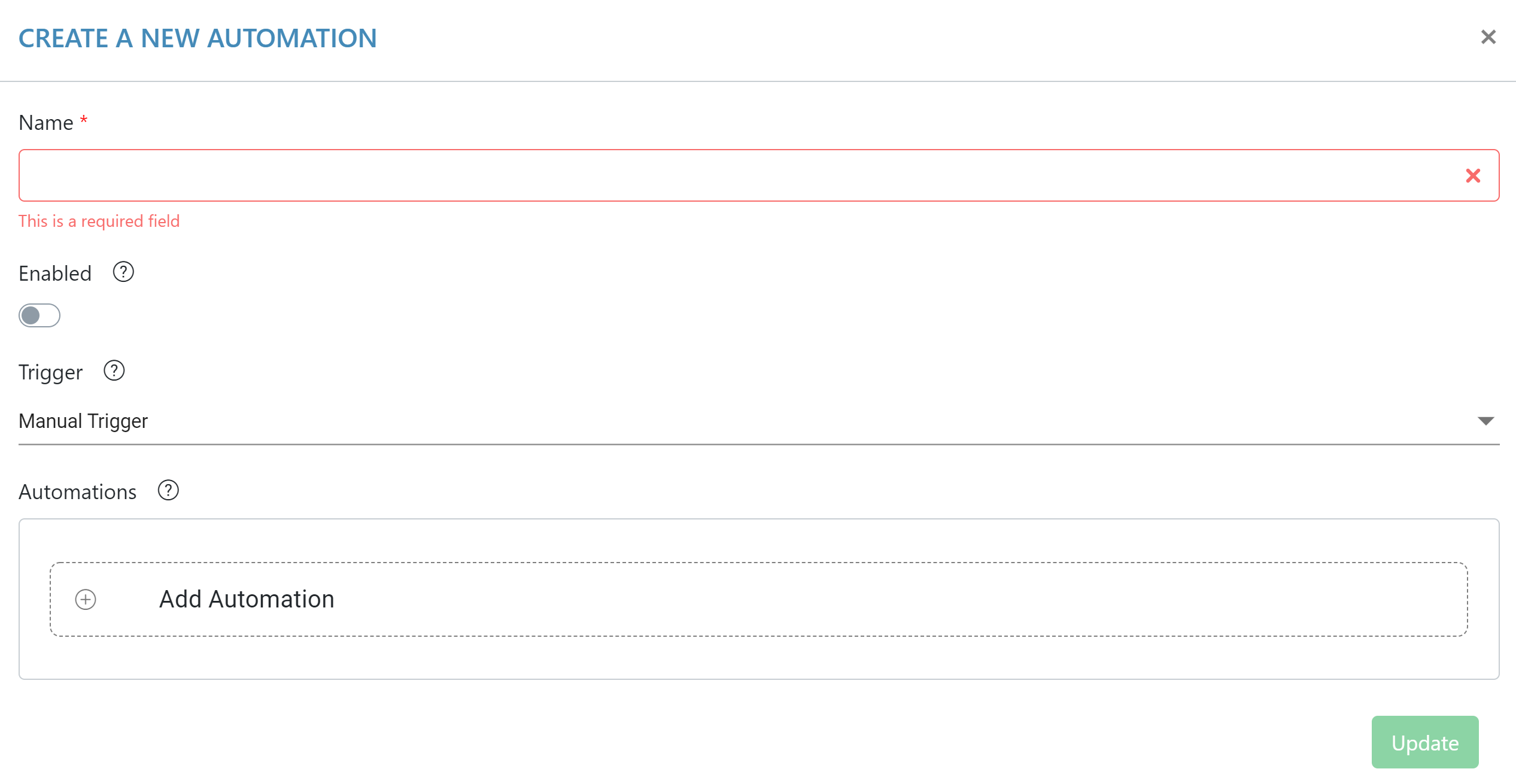
5. To start off, name the Automation
6. Now, choose the trigger type. For this example, select the ‘Scheduled’ trigger type.
7. The user may use a pre-configured schedule, or the user may create a custom schedule for the Automation to follow. For more information, refer to Automations Conditions.
8. Select the ‘Monthly’ schedule on the left side of the page
9. Now, click on the ‘Select An Automation’ button on the bottom of the page
10. A new screen will now appear, this screen features all of the different Automation types that the Rivial platform supports
11. Select ‘Generate Report’
12. Once the ‘Generate Report’ modal opens, use the drop-down that appears to select the report template that is going to be generated
13. For this example, we are going to select the Program Report. The user may also select an Evidence item for the report to attach to as an Evidence Artifact
14. After selecting the Report Template, click ‘Submit’
15. Now, confirm that everything has been entered into the modal correctly, then click ‘Update’.