Satisfying File Requirements
Whether uploading an organization logo or a report cover page background we may require or recommend a certain set of criteria for the uploaded file to function properly. Please see below instructions on how to check and create a file that will meet the requirements set out by the uploader.
Types of Requirements
Minimum Image Height or Width
Minimum height refers to the lowest allowed vertical size of the image measured in pixels. Minimum width is therefore the lowest horizontal size of the image, also measured in pixels. When the uploader requires a particular dimension for one or both sides of the image we are usually trying to ensure that the image has a large enough resolution to not appear pixelated or small when its displayed.
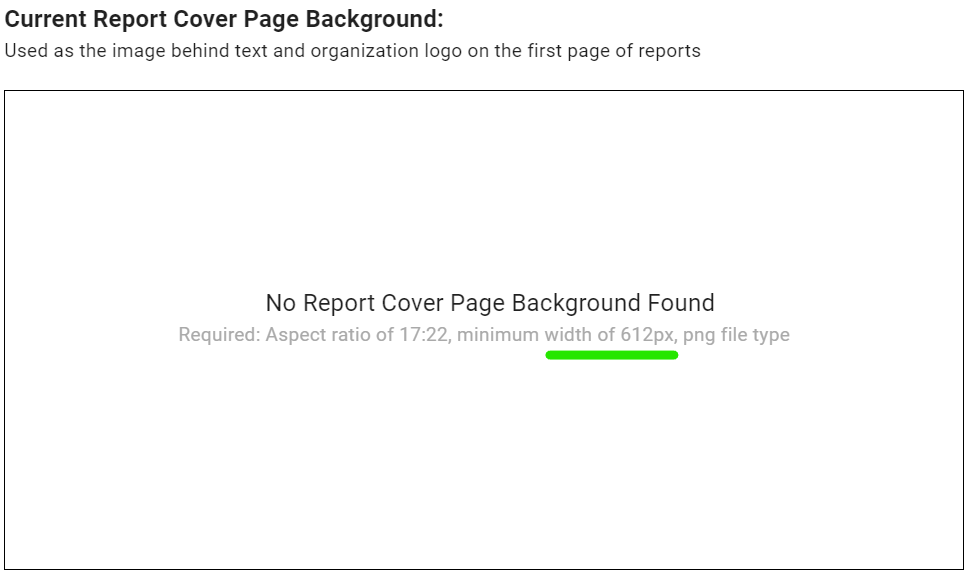
Image Aspect Ratio
Aspect ratio of an image is calculated by taking the width of an image in pixels and dividing it by the height. For instance, when an aspect ratio of 17:22 is required, this means that your the following equation should be satisfied.
image width / image height = 7/22
Aspect ratio requirements allow us to ensure that images are not stretched when they are used in the platform.
File Type Requirements
In some cases we may need you to use a particular file type. We rely on the file extension for the file to be correct when you are selecting image files in particular. This check helps us ensure that the file being uploaded can be opened, processed and displayed correctly from inside the platform. For instance, we cannot show a word document as an organization logo because it cannot be easily rendered in the browser.
How to check your image
Although we do check for file requirements to be satisfied on our side, you may want to check if your file fits the constraints before selecting it in the platform. Image dimensions, file types and other details can be checked in File Explorer on Windows or Finder on macOS.
Windows:
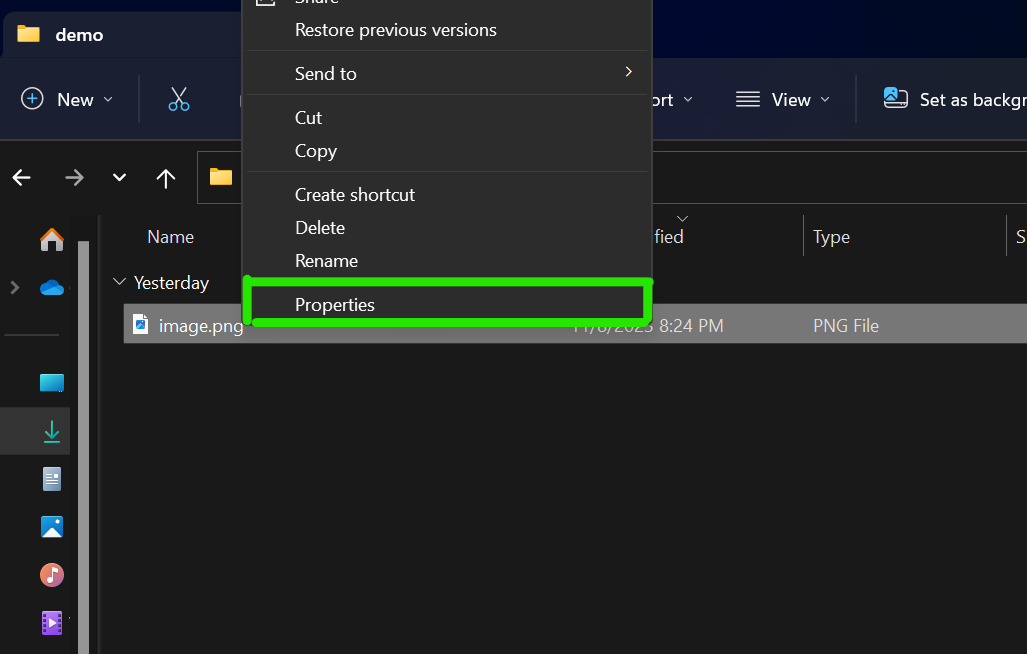
Right click on an image file in file explorer and press “properties”
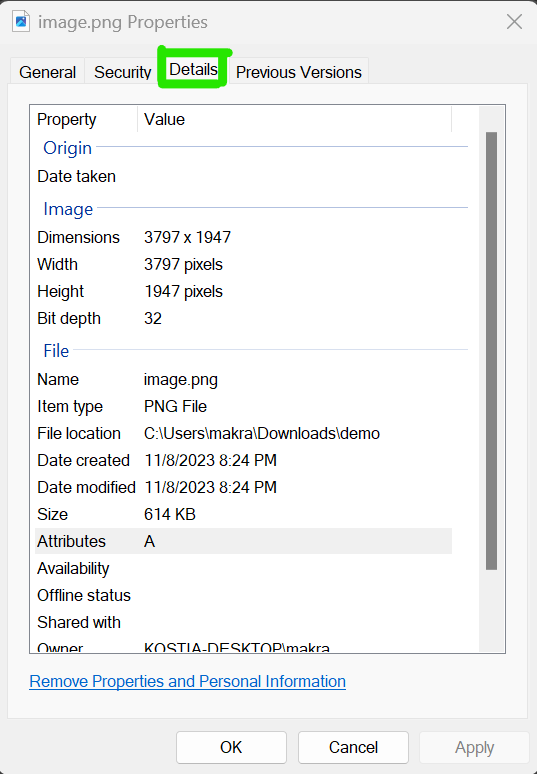
Go to the details tab and find all image information on this page
macOS (Apple Devices):
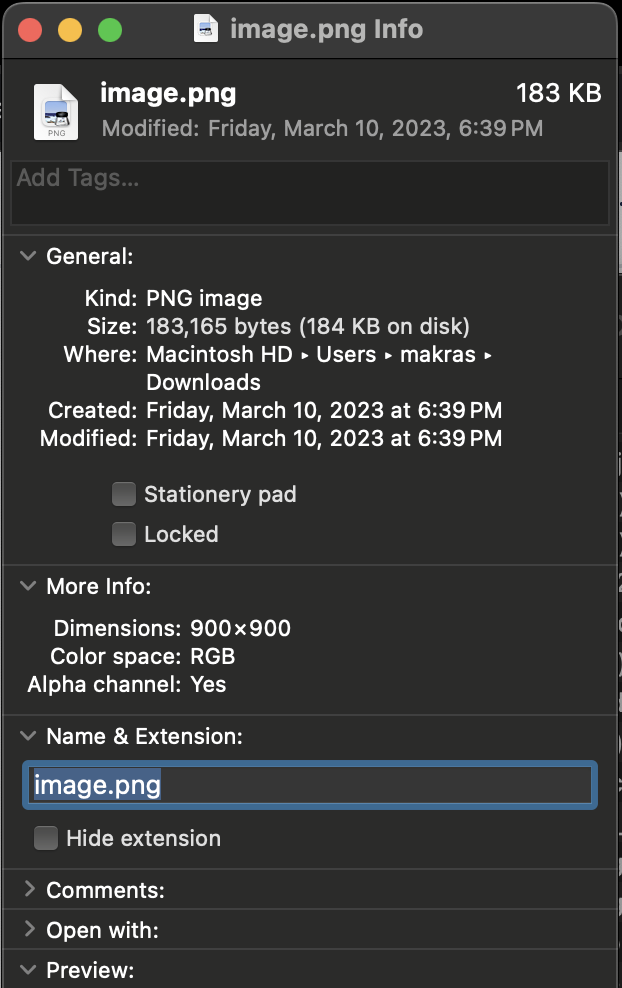
Inside of a finder window control + click on a file
Press on “Get Info”
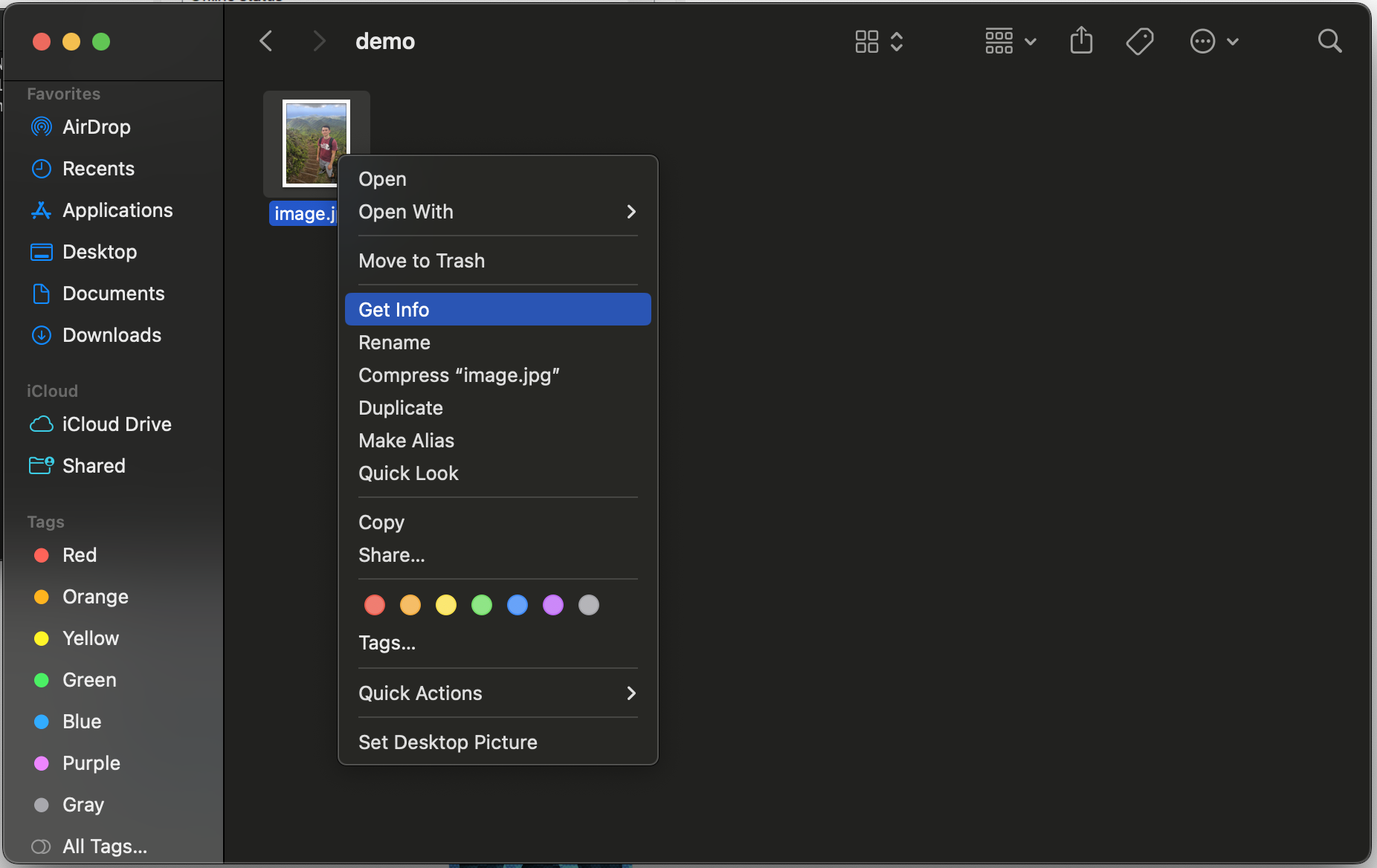
Navigate through out the dialog to find the correct information, for instance image dimensions are in “More Info” and File type is “General”
Samples of files satisfying constraints
Report Cover Page Background