
Microsoft Azure AD/Entra ID SSO Integration
Add Rivial Cybersecurity Management Platform from the gallery
To configure the integration of Rivial Cybersecurity Management Platform into Microsoft Entra ID, you need to add Rivial Cybersecurity Management Platform from the gallery to your list of managed SaaS apps.
Sign in to the Microsoft Entra admin center as at least a Cloud Application Administrator.
Browse to Identity > Applications > Enterprise applications > New application.
In the Add from the gallery section, type Rivial Cybersecurity Management Platform in the search box.
Select Rivial Cybersecurity Management Platform from the results panel and then add the app. Wait a few seconds while the app is added to your tenant.
Configure Microsoft Entra SSO
Follow these steps to enable Microsoft Entra SSO in the Microsoft Entra admin center.
Sign in to the Microsoft Entra admin center as at least a Cloud Application Administrator.
Browse to Identity > Applications > Enterprise applications > Rivial Cybersecurity Management Platform > Single sign-on.
On the Select a single sign-on method page, select SAML.
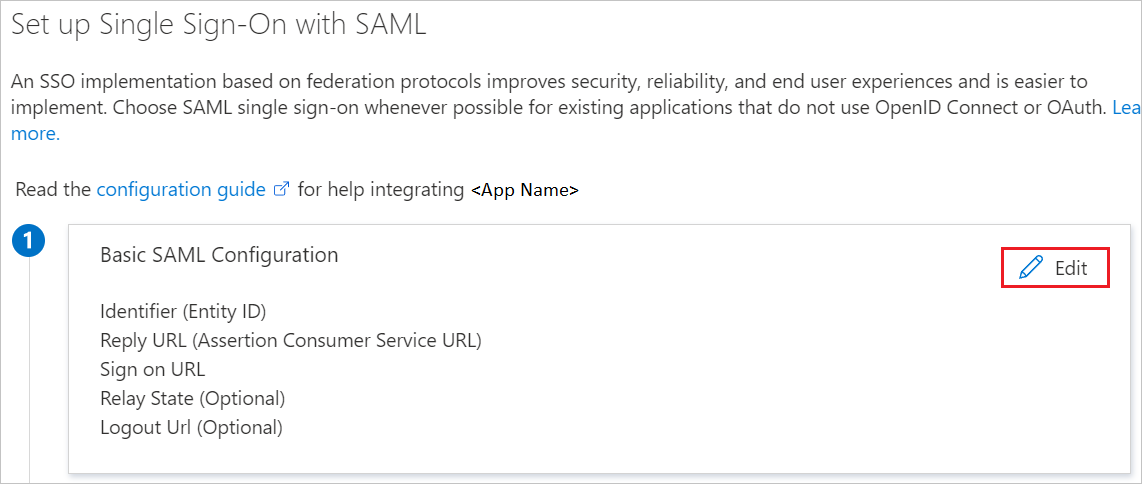
On the Set up single sign-on with SAML page, click the pencil icon for Basic SAML Configuration to edit the settings.
On the Basic SAML Configuration section, perform the following steps:
a. In the Identifier (Entity ID) text box, type a value using the following pattern:
urn:amazon:cognito:sp:us-west-2_n3o0xVBI5b. In the Reply URL text box, type the URL:
https://rivialsecurity.auth.us-west-2.amazoncognito.com/saml2/idpresponseIn the Sign on URL text box, type the URL:
https://platform.rivialsecurity.comOn the Set up single sign-on with SAML page, in the SAML Signing Certificate section, click the copy button to copy App Federation Metadata Url and save it on your computer.
Assign the Microsoft Entra ID test user
In this section, you'll enable B.Simon to use Microsoft Entra single sign-on by granting access to Rivial Cybersecurity Management Platform.
Sign in to the Microsoft Entra admin center as at least a Cloud Application Administrator.
Browse to Identity > Applications > Enterprise applications > Rivial Cybersecurity Management Platform.
In the app's overview page, select Users and groups.
Select Add user/group, then select Users and groups in the Add Assignment dialog.
In the Users and groups dialog, select a user from the Users list, then click the Select button at the bottom of the screen.
If you are expecting a role to be assigned to the users, you can select it from the Select a role dropdown. If no role has been set up for this app, you see "Default Access" role selected.
In the Add Assignment dialog, click the Assign button.
Configure Rivial Cybersecurity Management Platform SSO
To configure single sign-on on Rivial Cybersecurity Management Platform side, you need to send the App Federation Metadata Url and your Azure AD domain name to Rivial Cybersecurity Management Platform operation team. They set this setting to have the SAML SSO connection set properly on both sides.