
How to Create a Custom Query
Introduction
Custom queries are used to retrieve and format data from the platform to be used in widgets, emails, reports and for exports. You can create and edit custom queries by using the custom query builder.
Query Builder UI Walkthrough
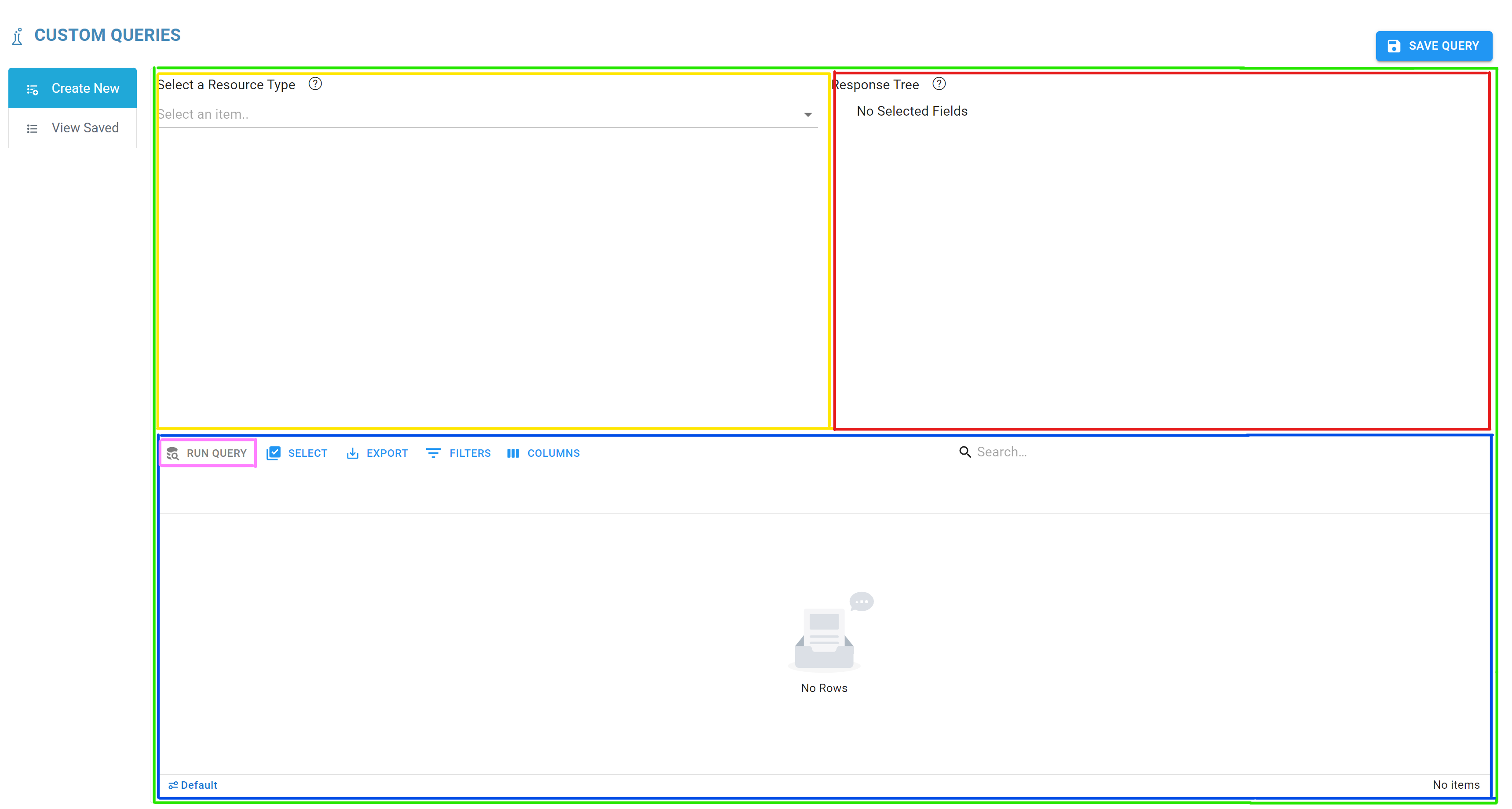
Yellow - This is the field selection UI, here you can choose the data that is retrieved by the query
Red - This is a quick navigation UI which can be used to quickly see at a glance all of the nested fields which were selected to the left and to more quickly navigate to different parts of the query to configure the data further
Blue - This is a special data grid that is able to display the data retrieved by the query, normal export and search operation still work on the retrieved data but the displayed data may be in its raw format which will cause it to look different then the data shown through out the app
Pink - This is the button to press to run and refresh the data based on the query created above
Taking a bit closer look the query field selection tool has several important pieces in itself.
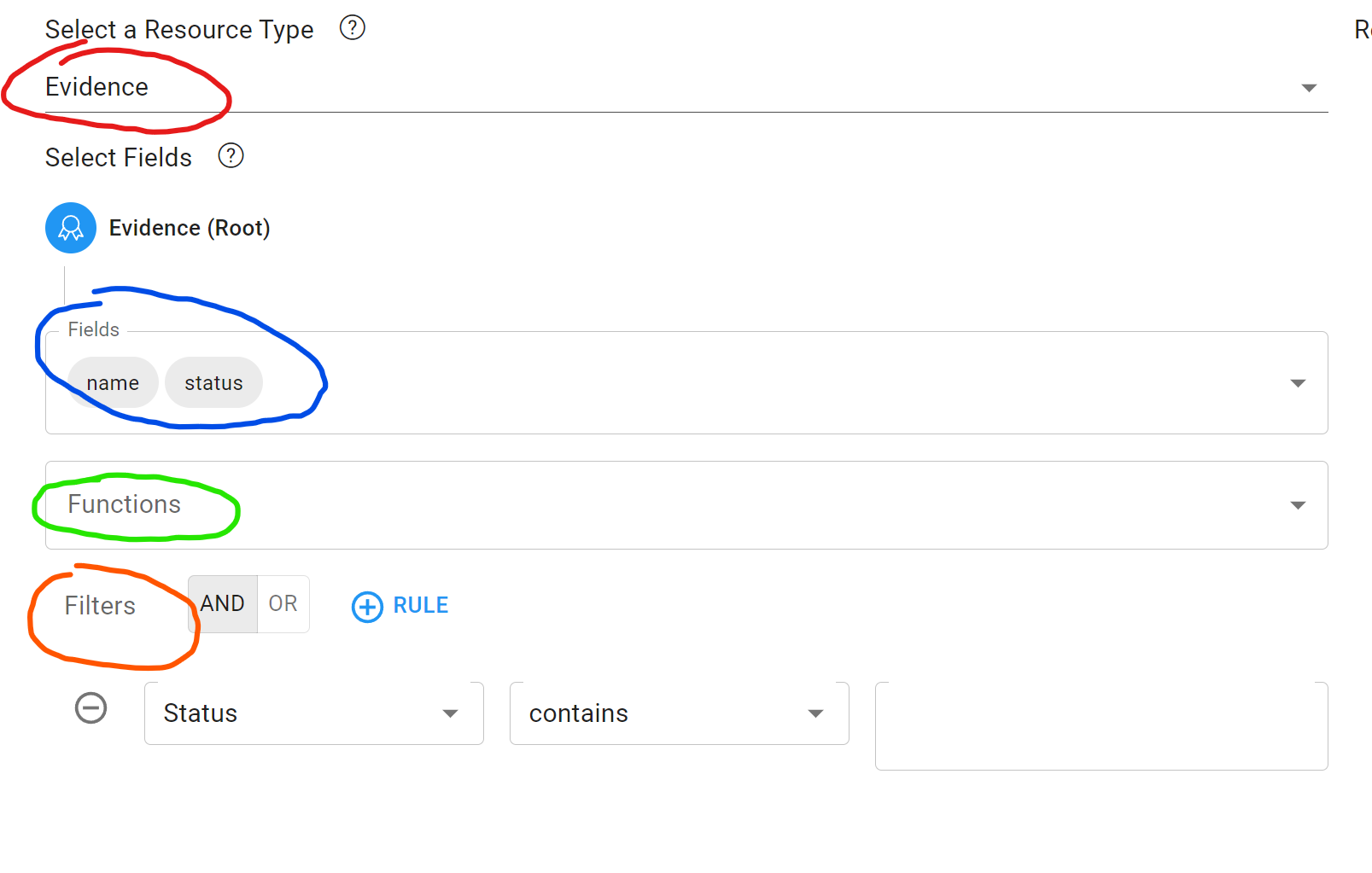
Red - At the top of the field selector is a drop down where you can indicate the root resource which is being queried
Blue - This is the section where yo can select the field to retrieve for a particular resource. Note that resources are often nested. For these resources the field colors will be in blue, these resources require that you go deeper and select additional sub fields that are part of that resource
Green - Functions allow to format the query data into a shape that is more suitable. They also allow to summarize and aggregate data from queries. The final query data will always be returned with all of the selected functions applied. Each function can be renamed into with a custom name which becomes its field name in the returned data
Orange - Filters can be used to obscure particular information from both the functions and the final result. Use these to get lists of resources that match a certain criteria based on their field values
Step by Step Guides
Creating a Query with Filters (Retrieval of only In Place Evidence)
Navigate to the query builder
Select “Evidence” as the resource type
Under fields choose “name” and “status”
Under filters choose the “status” field and change the operator from “contains” to “equal to”
As the filter value choose “inPlace”
Now run the query from the toolbar of the bottom data grid to check if all in place evidence is retrieved
Creating a Query with Functions (Retrieval of the Full Name of a Point of contact)
Navigate to the query builder
Select “PointOfContact” as the resource type
Under fields choose “firstName” and “lastName”
Under Functions choose the “getFullName” option, now press on the function\
Rename the function to what ever field you want, like “FULL NAME”, this is now th field name of the function return value
Now run the query from the toolbar of the bottom data grid to check if the returned data now contains a full name field which combines the first name and the last name from the retrieved data
Creating a Query with Deeply Nested Fields (get information system and their owners)
Navigate to the query builder
Select “System” as the resource type
Under fields choose “name” and “pointOfContact”
Press on the “pointOfContact” field
Now under fields again choose first name and last name
Now run the query and check if each system contains the information about each system owner